NostalgiaFamily Archive

Restore one photo. Finish the family archive.

Start with one meaningful photo. Photo Insight recommends the careful first repair. Then name the people, preserve the context, and share the keeper privately — the archive grows from there.

Free to startPrivate & secureKeep your originals

Available on web and on the App Store for iPhone. Android remains in closed testing. Get the app.

Restore · Name · ShareOne archive workflow
Photo Insight firstCareful by default
FreeTo start
Same photo restored with cleaner detail and balanced toneRestored
Black and white photo of a grandfather and young grandchild on front stepsOriginal

A grandfather and grandchild on the front steps — fading repaired, original preserved, context ready for the family archive.

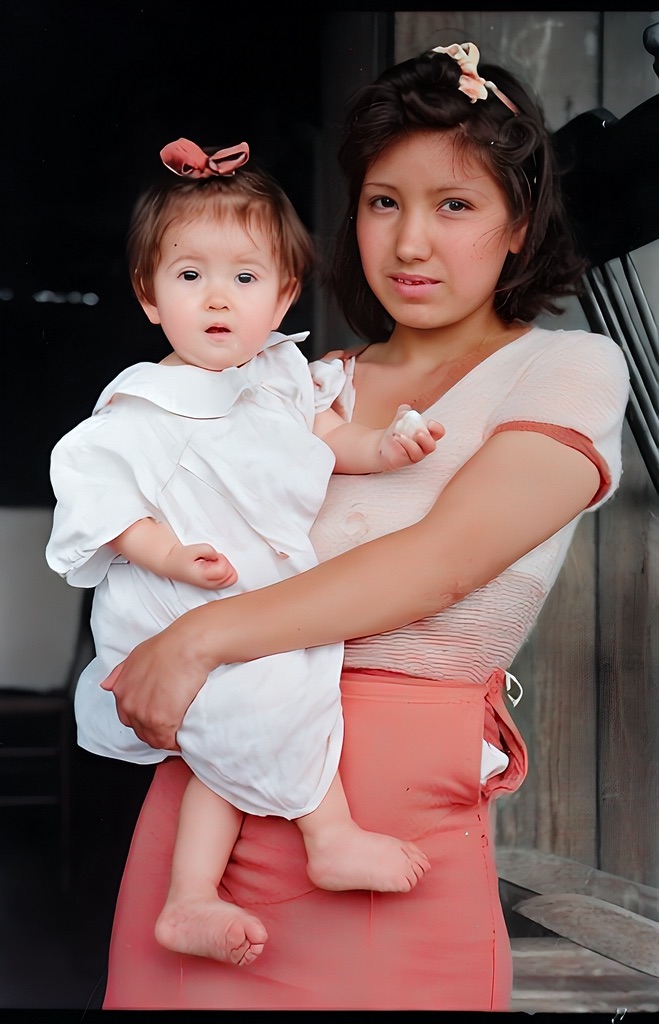
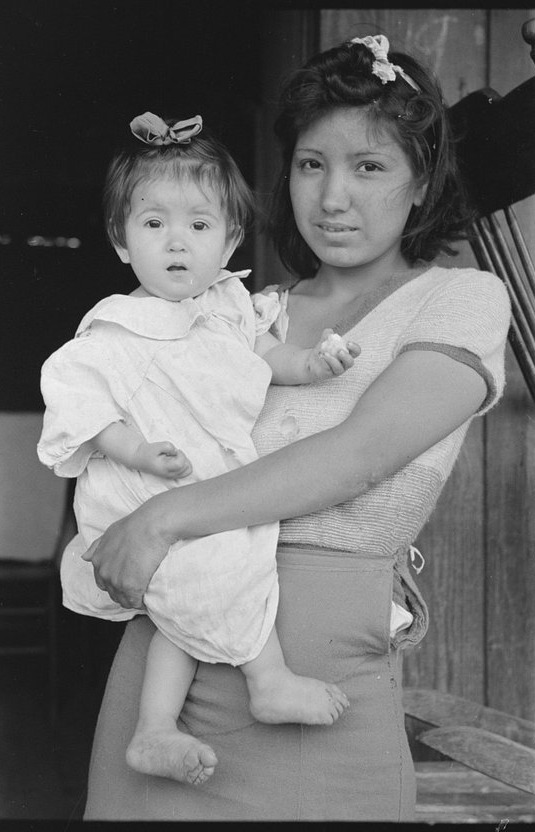
Same portrait restored and colorized with warm natural tonesColorized
Black and white portrait of a young mother holding her babyOriginal

Mother & Child

Restore first. Color only if it helps.

Most photos only need careful repair. When color adds context, Nostalgia lets you compare it against the restored original instead of forcing a stylized result.

  • Photo Insight flags weak scans before you spend a credit
  • Restore is the default path and color stays optional
  • Private family archive keeps originals, versions, names, notes, and shared links together
Try It Now

See AI restoration in action

Pick a damaged photo below. No sign-up needed.

After the restore

The archive grows from one careful photo

Restoration is the entry. The product is the private family archive that builds around it.

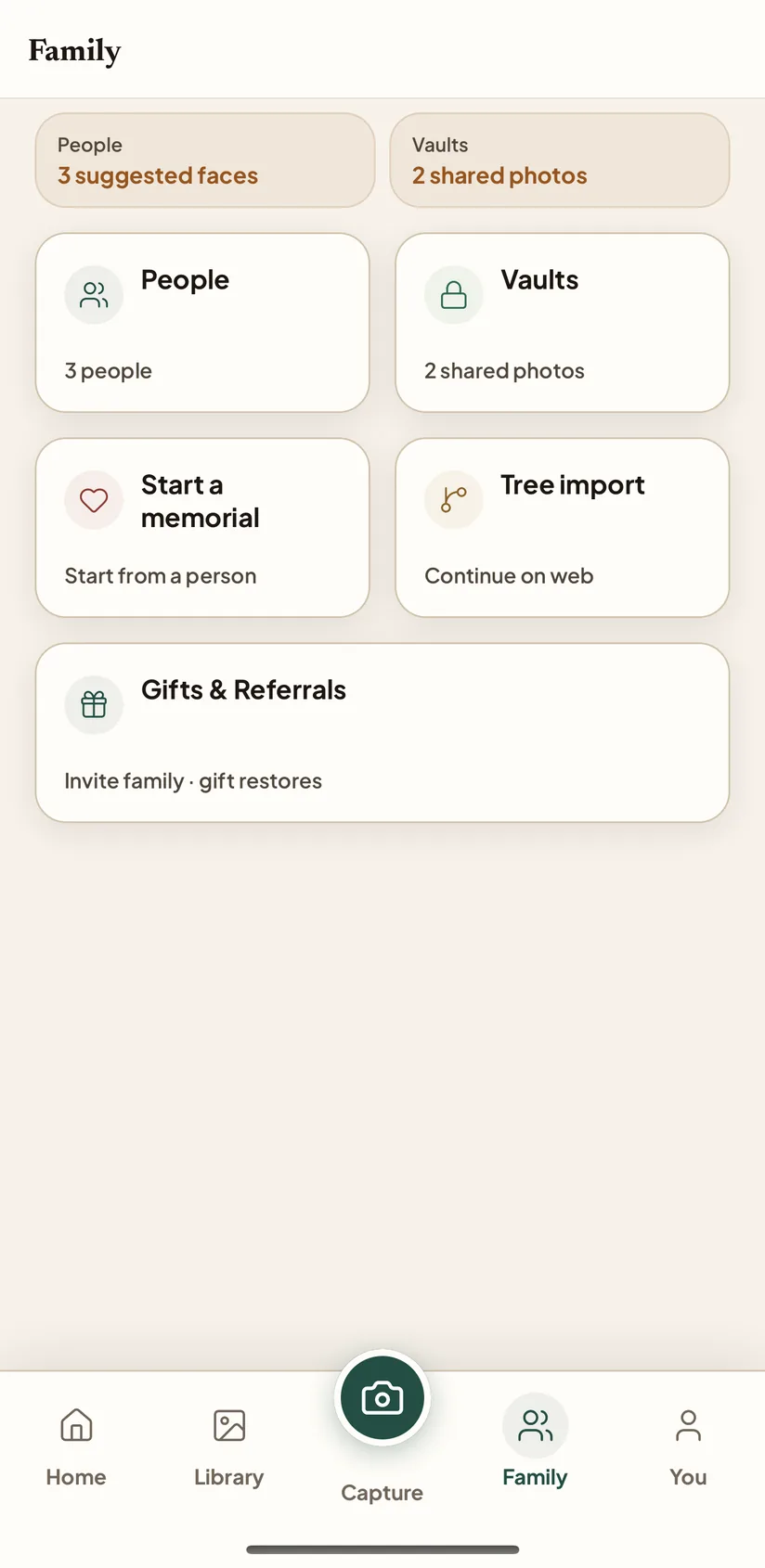
  1. Original savedWe never overwrite the photo you uploaded.
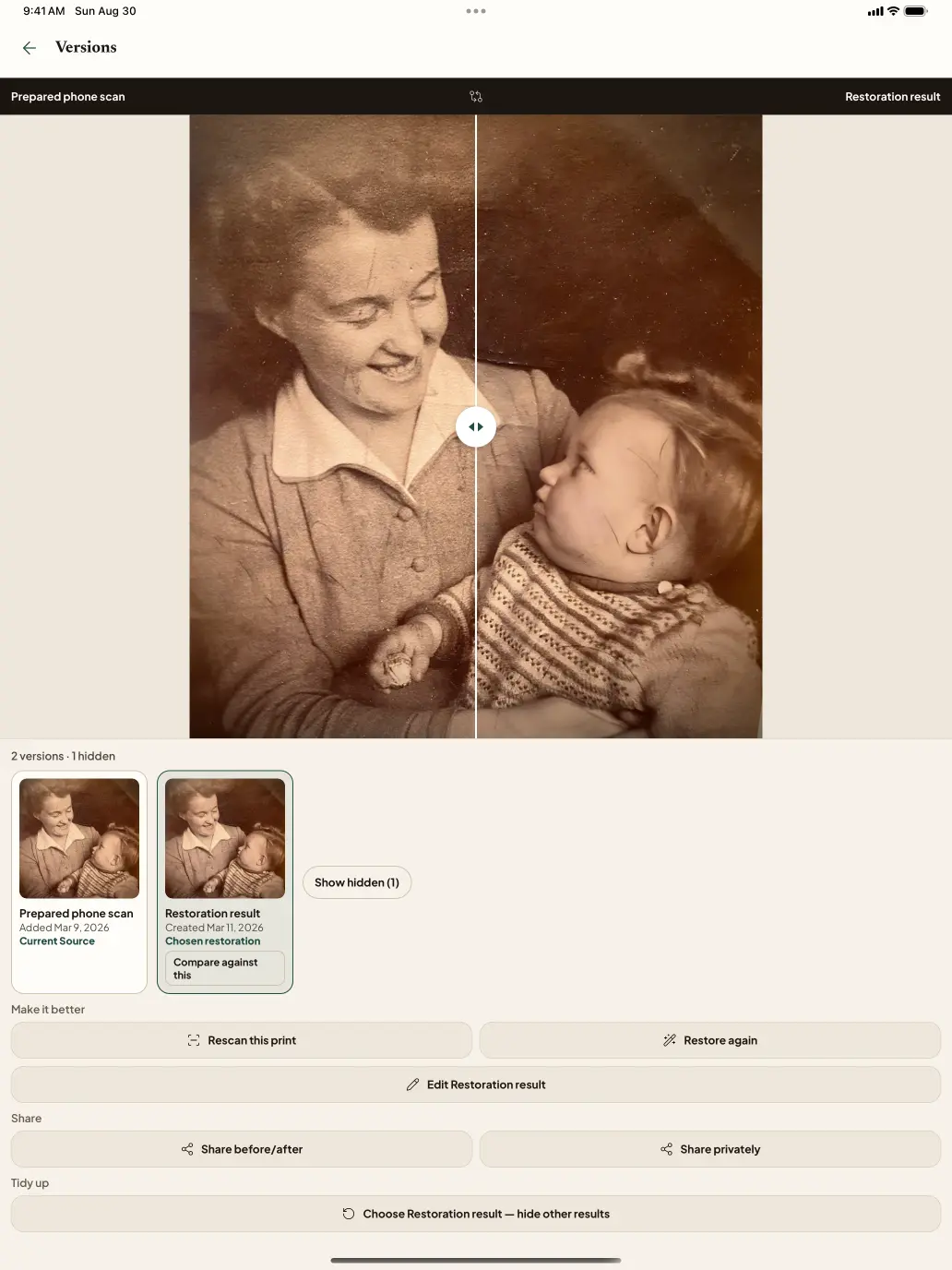
  2. Best Version chosenCompare restored, colorized, and enhanced — pick the keeper.
  3. People namedTag who's in the photo so they're tagged everywhere they appear.
  4. Caption & notesAdd who, when, where, what — the story stays with the photo.
  5. Family VaultFile it into a private space relatives can actually use.
  6. Private shareSend a link to family — no account needed to view.
How It Works

Four steps from restore to archive

1

Upload or scan

Start with the photo you already have. Photo Insight checks capture quality before you spend a credit.

2

Restore carefully

Run the recommended repair first. Color and extra detail stay optional follow-ups when they genuinely help the photo.

3

Name and explain

Add captions, people, dates, back-of-photo notes, and keeper choices while the memory is still fresh.

4

Share and keep

File the keeper into a Family Vault, share privately, or continue larger archive cleanup on the device with the most space.

The Three-Pass Discipline

Restore first. Color optional. Enhance only if the photo supports it.

Most family photos need careful repair, not maximum AI. Nostalgia fixes visible damage first, then lets you add color or detail only when the photo can take it — and keeps every version in your private Library so the archival master is never overwritten.

  1. 1
    Same family photo restored with scratches and fading removedAfter
    Original 1940s family photo with scratches and fadingBefore

    Restore

    Guided Repair

    Start with a repair pass that cleans up age damage while keeping the original character of the print.

  2. 2
    Same photo with natural color applied by AIAfter
    Restored black and white family photoBefore

    Add color

    Optional Color

    For black-and-white photos, bring the scene to life with natural, era-appropriate color. Always optional — keep the monochrome version if it already feels right.

  3. 3
    Same portrait after targeted enhancementAfter
    Soft portrait before enhancementBefore

    Enhance only when the file supports it

    Optional Detail

    If the repaired photo is still limited by capture quality or resolution, Nostalgia can suggest a final detail pass instead of pushing every image through sharpening by default.

Why Nostalgia

An archive built around preservation, not effects

Nostalgia Family ArchiveRestoration apps
Photo Insight before restoringAI assesses damage, era, and quality first — ranked repair plan with blocked-step warningsRuns immediately, you figure out what went wrong
Natural-looking resultsFaces still look like who you rememberAggressive AI that changes how people look
Guides you to better inputSuggests rescanning when it'll help more than another AI passAccepts anything without guidance
Private libraryAlbums, similar-photo cleanup, trash, Family Vaults, cross-device syncDownload-only — no organization
Works across devicesScan on mobile, organize on web — library syncs everywhereSingle-platform only
Your photos stay privateNever shared, never sold, no AI training on your photosMany train on uploads by default
Real-time processing updatesLive progress with ETA estimates, priority queue for paid tiersUpload and wait — no progress visibility
Duplicate detection & mergeFinds visual duplicates, compares quality, merges metadata automaticallyManual cleanup or no detection
Conservation guidanceWarns about mold, water damage, fragile prints before processingNo physical handling advice

“I started Nostalgia after losing my father. Going through old family photos, I kept hitting the same question: does this still feel like the person I remember? That question sits behind every design decision here.”

Free to start

Ten restores a month, free. The archive grows from there.

The free tier includes 10 photo restores a month and 5 AI captions a day, plus a private Library where every restored version stays alongside the original you uploaded.

Want more runs without upgrading? Invite a cousin or sibling from the You tab — when their first restoration lands, you both earn credits toward Plus or Pro. Restoring a photo as a gift for a relative? See the gift flow.

  • Your photos are never shared or sold
  • Encrypted uploads, private by design
  • You keep full ownership of originals and results
  • We never train AI on your photos
  • Export or delete your data anytime

FAQ

Straight answers about results, privacy, pricing, and what to expect.

What can Nostalgia restore?

Scratches, fading, blur, glare, lost detail, and missing color. Nostalgia generates a Photo Insight report first — assessing damage, era, and capture quality — then repairs damage, colorizes black-and-white prints, enhances detail, and offers follow-up tools like captions, animation, and background removal.

How long does restoration take?

Most restorations complete in under 60 seconds. You’ll see real-time progress and an ETA estimate for each step. Colorize and animate jobs may take a few minutes depending on queue depth. Plus and Pro subscribers get priority queue placement for faster processing.

Are my photos private?

Yes. Your photos are processed automatically to deliver the restoration you request. We do not use uploaded photos or restored outputs to train AI models, and human review is limited to support or safety cases that you report. You can export or delete your data anytime.

What does it cost?

The free web tier includes 10 photo restores per month and 5 AI captions per day. Plus starts at $5.99/month (USD) and Pro at $11.99/month (USD) — local pricing varies by country. See the pricing page for full details.

Need direct help with one important photo? Visit the Support page for a personal reply.

Working on family history? Read the archivist’s overview — how Nostalgia handles the photo side of FamilyEcho, Ancestry, MyHeritage, RootsMagic, Family Tree Maker, Gramps, or FamilySearch.

Nostalgia Family Archive