Archive
Every restoration saves to your private Archive. Search and browse the photo grid first, use compact quick filters for browsing work, revisit versions, and let stale thumbnails recover quietly.
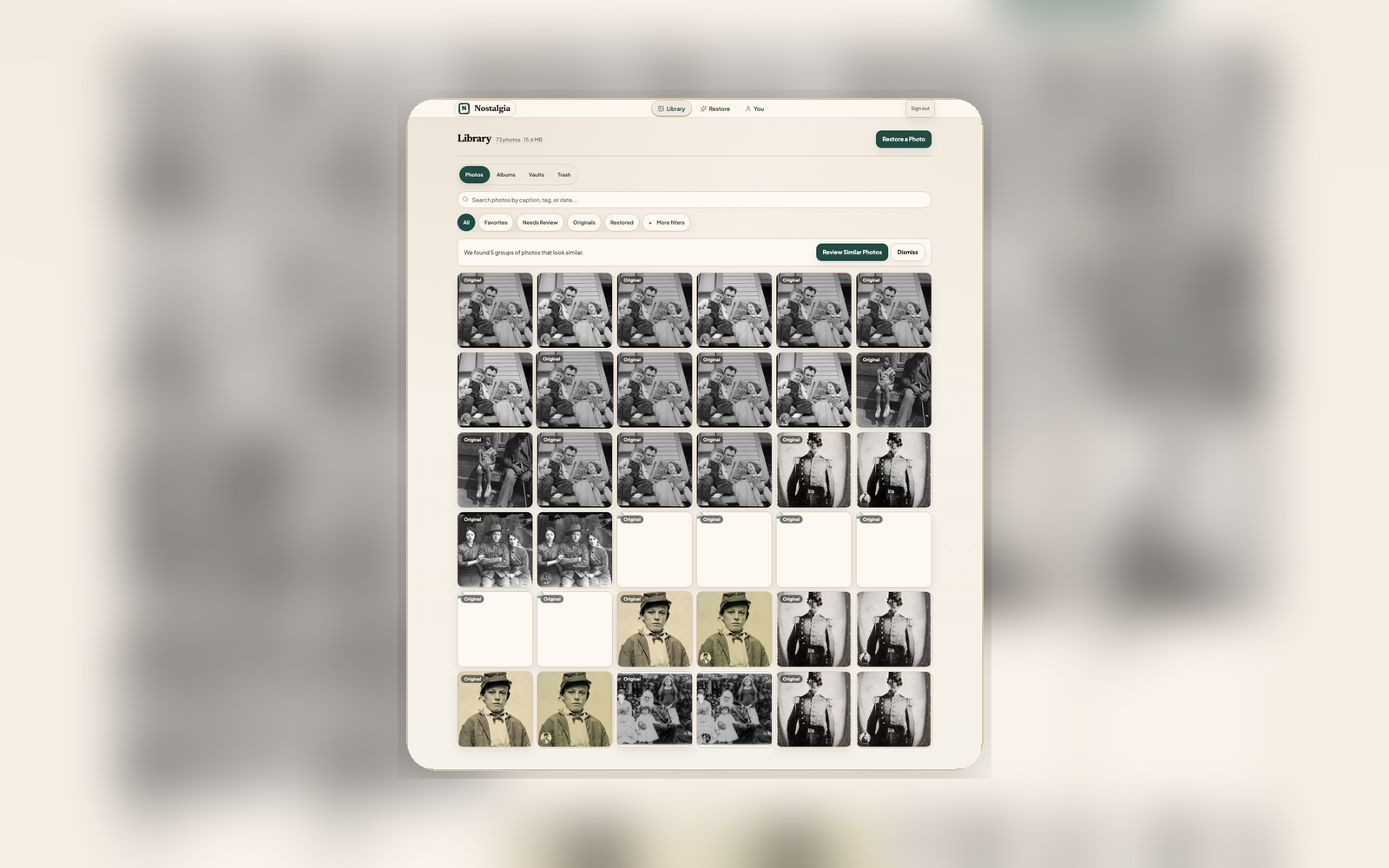
Your photos, organized and safe
Restore
Restore a photo on mobile or web. Every result automatically saves to your Archive with full version history.
Organize
Create albums for family branches, events, or eras. Organize photos in a way that matches how your family remembers them.
Revisit
Browse your timeline, search by caption, note, place, or date, use quick filters for browsing, and access any version of any restoration at any time.
What the Archive includes
Recoverable Browsing
Recent Archive rows render from the local cache first. Sync, thumbnail refresh, and signed media URL recovery continue in the background instead of clearing the grid or showing dead tiles.
Albums
Group related photos into named albums. Organize by family, era, event, or however makes sense for your memories.
Timeline View
See your restorations laid out chronologically. AI-estimated dates, EXIF, imported dates, back notes, and confirmed front date stamps help place photos in the right era.
Family People
People and suggested faces live in Family, so relationship work stays connected to vaults, memorials, and tree import.
Archive Search
Find photos by describing what’s in them. AI suggestions and your edits feed search across descriptions, tags, captions, people, Archive Notes, places, and dates.
Version History
Every restoration step is saved. Compare the original scan against any intermediate or final version.
Trash & Recovery
Deleted photos move to Trash with a 30-day recovery window before automatic cleanup. Recover accidentally deleted photos or let cleanup happen on its own.
Needs Attention
Missing thumbnails, ready-to-review originals, and recently restored photos appear as compact filters above the grid, not as confusing sections below the photo stream.
Keep the result, then keep going
Restore a photo and it automatically appears in your Archive. Organize, search, browse by album or timeline, and revisit anytime on the larger web workspace. Cached rows keep the workspace usable while new changes sync.